


Slax Linux 2026.11 (Debian)
By Cloud Temple - Version 2026.11
Slax Linux 2026.11, based on Debian 13, provides a lightweight desktop environment with a web browser for one-off tasks such as configuring firewalls, network diagnostics and maintenance. The XE Guest Tools are integrated and start automatically. Session changes are temporary.
Overview
Slax Linux 2026.11
A ready-to-run Linux desktop for accessing firewall administration interfaces, diagnosing network issues or carrying out maintenance tasks. This image is intended for one-off tasks, with access via the virtual machine’s console.

Official screenshot of the Slax 2026.11 desktop.
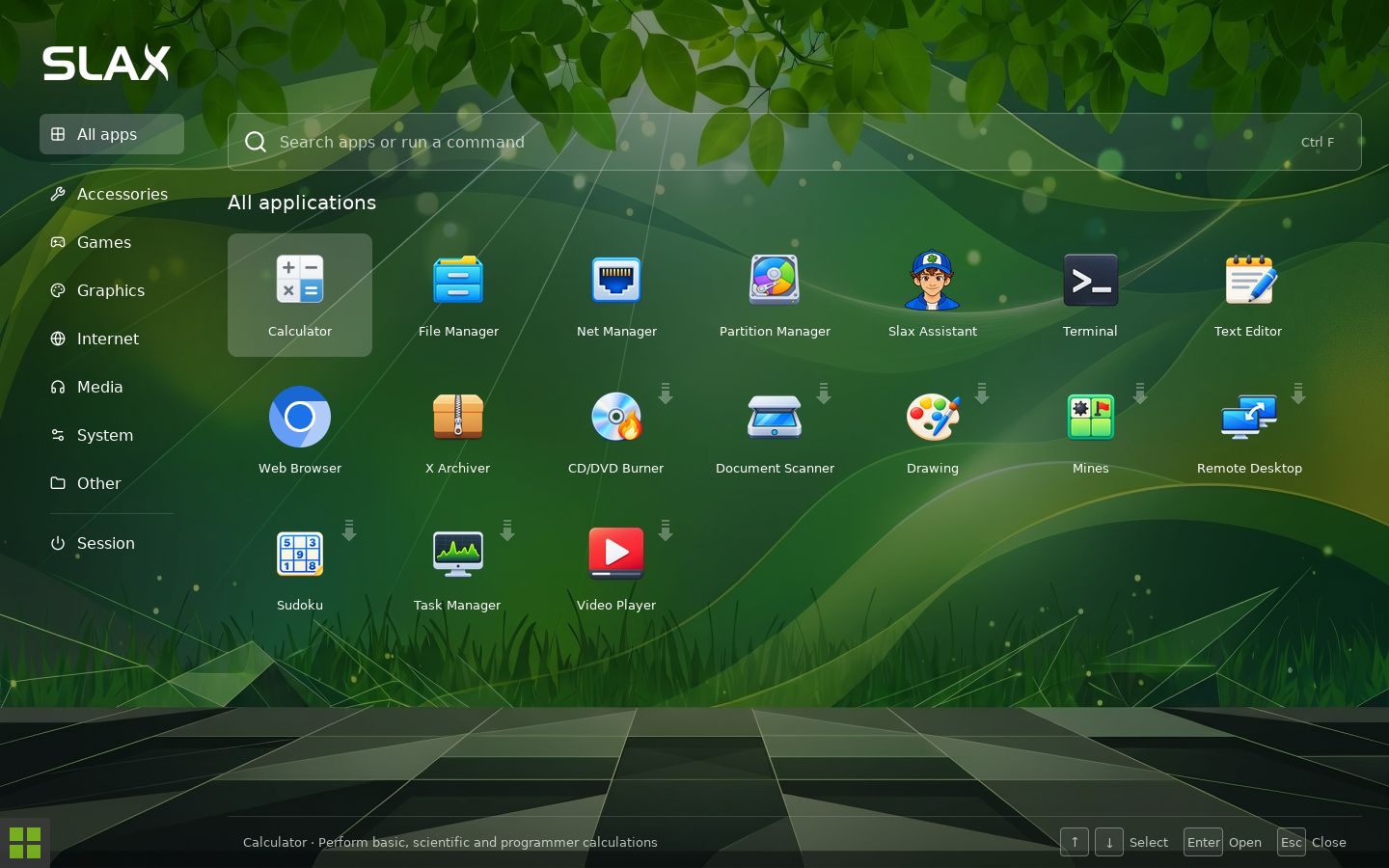
Image content
- Based on Debian 13 (Trixie), x86-64 architecture and Fluxbox desktop environment.
- Chromium browser, terminal, file manager and network tools.
- XE Guest Tools are integrated and start automatically at every boot.
- Boot from the virtual disk, without mounting an ISO.
- Deployment on OpenIaaS and VM Instances.
Temporary sessions
The image starts without resuming a persistent session. Any software, settings and files created in the live system are lost when the system is shut down. Save any data you wish to keep to a separate volume or a network location. The applications included with the image and the Guest Tools remain available at every start-up.
Resources and access
Ensure you have sufficient memory for the pages and applications open in the browser. Access to managed devices depends on the network assigned to the VM and its filtering rules.
Introduction to Slax · Version 2026.11 and Debian 13 base system
How to use
Unfold and open the desk
- Select OpenIaaS or VM Instances in the deployment wizard.
- Assign the network interface to a network that provides access to the devices to be managed.
- Start the VM and open its graphical console.
- Check the network configuration, then open Chromium to access the firewall interface or that of the relevant device.
Guest Tools are already installed and enabled. No further installation of tools or insertion of an ISO is required after deployment.
During the procedure
Use the desktop network manager to configure the connection to suit your environment. To install additional software, run apt update, then apt install package-name ; downloading requires access to the Debian repositories.
Log out
Save any relevant data to a permanent location, then shut down the VM properly. Changes made to the live system, including any software added and session settings, will not be retained the next time the system is started.
Marketplace Getting Started Guide · OpenIaaS deployment · Using Slax
Support
Cloud Temple guarantees the deployment capability of the template image and the availability of the underlying infrastructure. This includes the ability to instantiate the image on the virtualised environment. However, support for the application content and the proper internal functioning of the template image is the responsibility of its publisher. This includes, in particular:
- Software patches and updates
- Application bug resolution
- Assistance with configuring the services contained in the image
- Application compatibility with the environment
Cloud Temple provides no support commitment regarding the actual content of the template image, its applications, or their functional behaviour.
Publisher’s website: Slax Linux Official documentation: Introduction and prerequisites · Customisation
Terms and conditions
Please consult our General Terms and Conditions of Sale and Use (GTCSU)